Digital Delivery
Once your payment has been confirmed, your digital code will be sent to the email address provided at checkout.
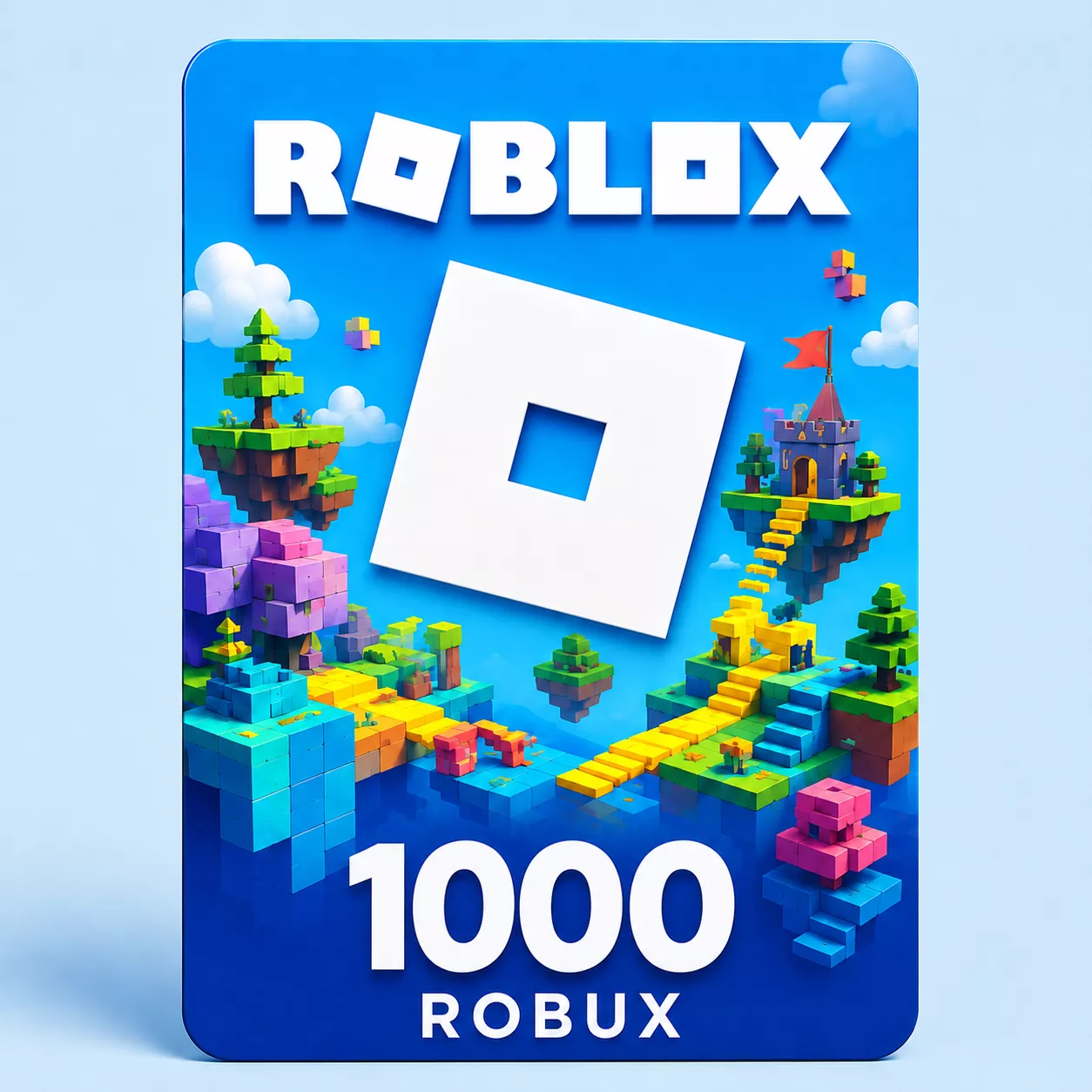
Roblox 1,000 Robux Gift Card – Global Digital Code
Digital Delivery
Once your payment has been confirmed, your digital code will be sent to the email address provided at checkout.
 Digital Key
 World Wide
Add 1,000 Robux with a Digital Gift Card
Redeem this Global Roblox gift card for 1,000 Robux. The code adds the stated amount directly to the receiving account, giving you a balance to spend on the virtual content you choose.
Eligible purchases include avatar clothing and accessories, experience passes and in-experience items. Prices and availability vary, so check the Roblox listing for any specific content you have in mind. Redeeming the card does not automatically purchase any of these items.
After payment confirmation, the digital code is sent to your checkout email address. Use a web browser to redeem it at roblox.com/redeem and verify that you are signed in to the correct account. No physical delivery is involved, and the code does not start a subscription.
How to Redeem a Roblox Robux Gift Card
Use the code only on the Roblox account that should receive the Robux. A redeemed code and its Robux cannot normally be moved to another personal account.
Redeem in a Web Browser
- Open roblox.com/redeem in a web browser.
- Sign in and confirm that the displayed Roblox account is the intended recipient.
- Enter the digital gift-card code from the order email.
- Select Redeem.
- Wait for the success message.
- Refresh the page or open the Robux balance to verify that the amount named in the product was added.
Gift-card redemption is not available in the standard Roblox mobile app or on consoles. Use a browser on a phone, tablet or computer. Roblox currently also allows Samsung Galaxy users to redeem through the Redeem tile in the Samsung version of its mobile app.
If the Code Shows an Error
- Type the code again and remove any spaces before or after it.
- Check characters that can look alike, including 0/O, 1/I, 2/Z, 5/S, 6/G/Q and 8/B.
- Confirm that you are signed in at roblox.com/redeem, not entering the code into an experience or an unrelated website.
- Check the account balance and transaction history in case the code was already applied.
- Save a screenshot of the exact error message for customer support.
Keep the code private and never post it in a chat, screenshot or public support thread. If help is required, provide sensitive code details only through the retailer’s or Roblox’s secure support channel.